
VolunTie is transforming the way small volunteering organizations manage their teams and opportunities. This free app brings all the essential tools—scheduling, communication, and coordination—into one seamless platform, replacing the chaos of WhatsApp groups, shared calendars, and scattered notes. One of its standout features is the volunteer signup process, designed to be intuitive for both administrators and volunteers. Below, I’ll walk you through how VolunTie’s volunteer signup features work, step by step, so your organization can get started effortlessly.
Step 1: Create an “Opportunity”
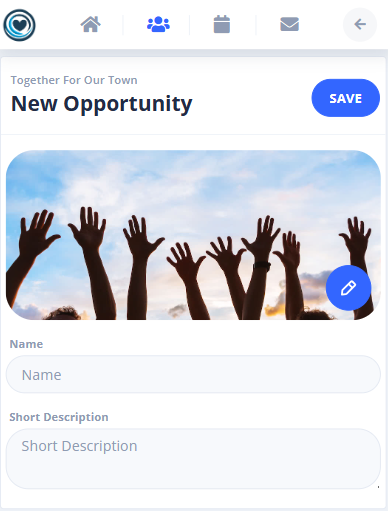
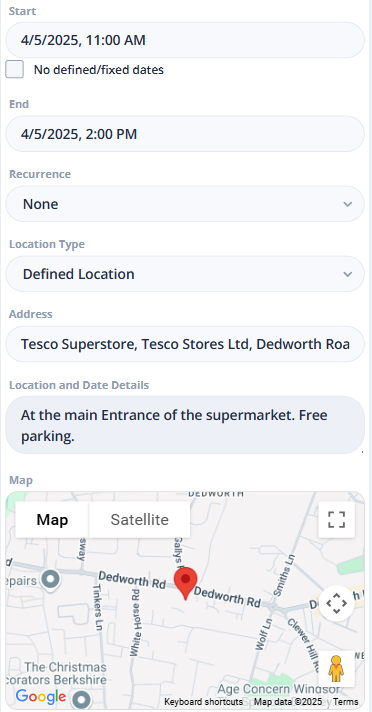
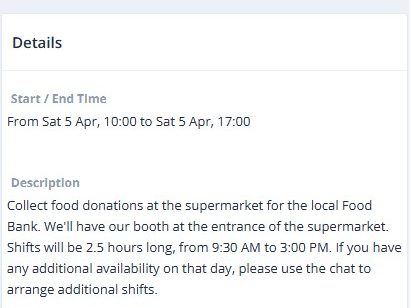
Administrators or contributors within a volunteering organization can kick things off by creating an “Opportunity” on VolunTie. This is the foundation of any volunteer event or project. When setting it up, you’ll input key details like the location, date, and time, along with specific instructions for volunteers. Whether it’s a community cleanup or a fundraising event, this is where you lay out the basics to get everyone on the same page.
Step 2: Add Tasks and Shifts
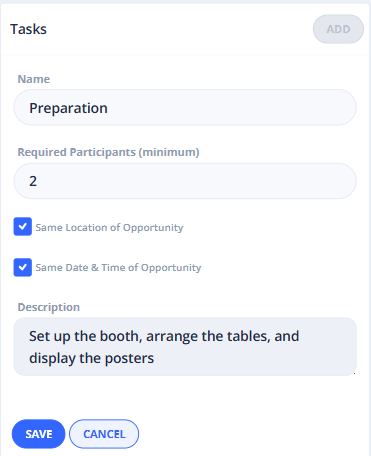
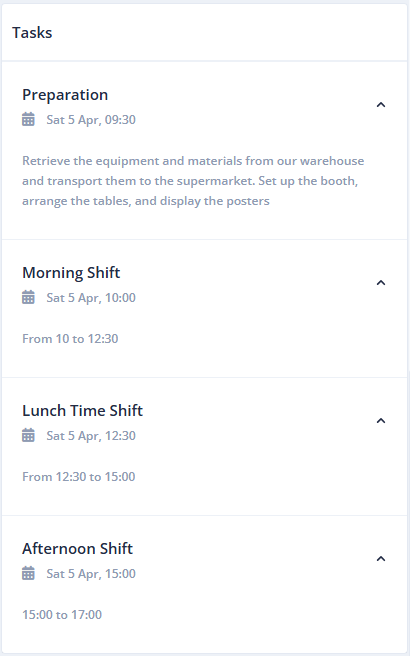
Once the Opportunity is created, administrators can break it down into specific tasks or shifts. For each one, you can include a description, location, time, and the number of volunteers needed. For example, a food drive might need five people for setup, ten for distribution, and three for cleanup—each with its own time slot. This level of detail ensures volunteers know exactly what’s expected and where they can contribute.
Step 3: Set Privacy and Share the Magic Link
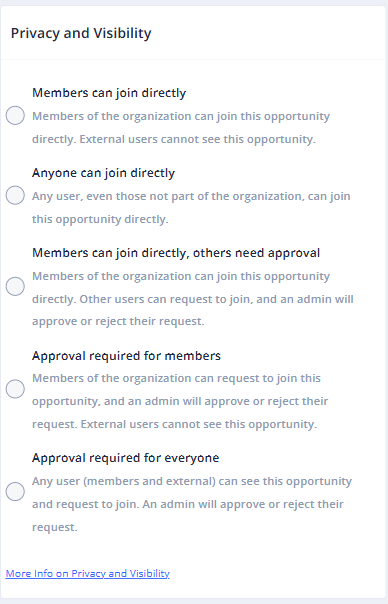
VolunTie offers flexible privacy options to suit your organization’s needs. You can make the Opportunity private (visible only to organization members) or public (open to anyone with the link). If you choose public, VolunTie generates a “magic link” after creation for the volunteer signup. This link can be shared via email, text messages, chat groups, or even Facebook—making it easy to reach potential volunteers far and wide.
Step 4: Volunteers Explore the Opportunity
When interested users click the magic link, they’re taken to a clean, user-friendly page on VolunTie. Here, they get an overview of the Opportunity, including its purpose, schedule, and available tasks. It’s a one-stop shop to see what’s involved before committing, ensuring volunteers feel informed and confident about signing up.
Step 5: Volunteers Click “Join”
Ready to get involved? Volunteers simply click the “Join” button on the Opportunity page. This streamlined action takes the hassle out of signing up—no endless forms or back-and-forth emails required. It’s volunteering made simple, just the way it should be for small organizations.

Step 6: Volunteers Onboarding
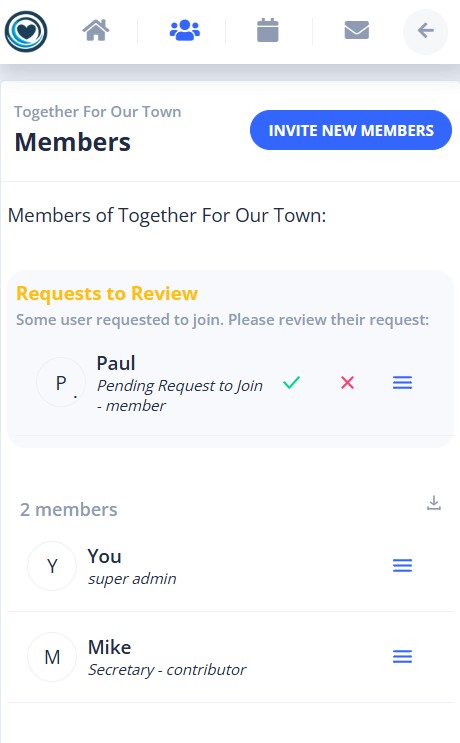
What happens after “Join” depends on the privacy settings chosen by the administrators. For public Opportunities, volunteers will be automatically onboarded, ready to dive in. For private ones, administrators can review and approve each request, ensuring the right people join the team. This balance of automation and control keeps things secure and efficient.
Step 7: Pick Your Tasks
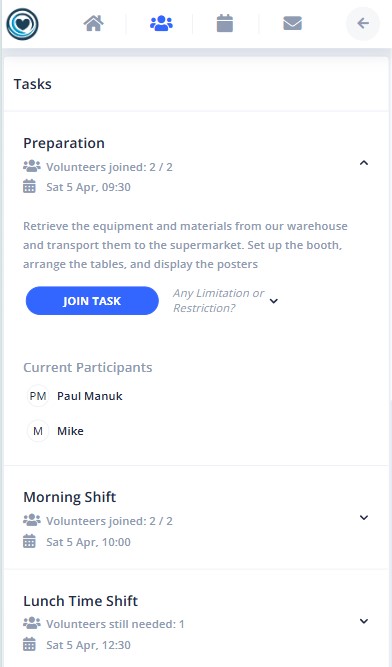
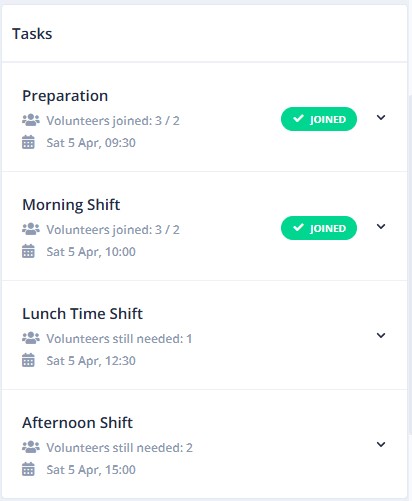
Once onboarded, volunteers can browse the list of tasks or shifts and select the ones they want to join. Whether they’re morning people eager for an early shift or prefer a specific role like greeting attendees, VolunTie gives them the freedom to choose. It’s self-organization at its best, empowering volunteers while saving administrators time.
Step 8: Join a Task with Notes and Restrictions
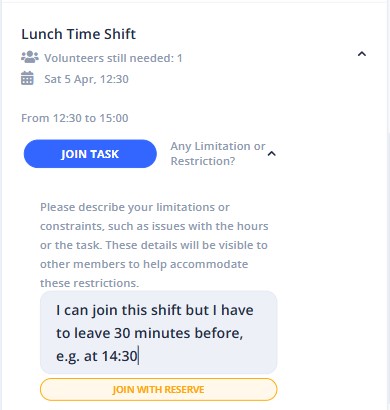
Life happens, and VolunTie gets that. Volunteers can join tasks with a reservation, adding notes about their availability—like “I can only stay for the first hour” or “Bringing extra supplies.” This flexibility ensures everyone can participate on their terms while keeping administrators in the loop.
Step 9: Stay Connected with Opportunity Chats
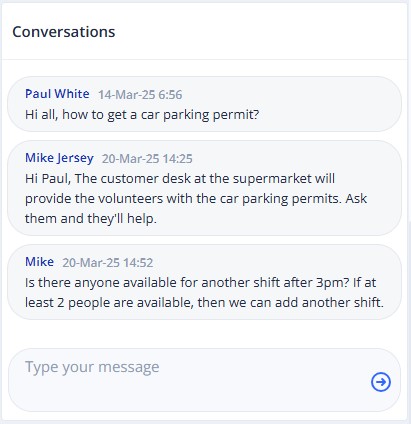
Every Opportunity comes with its own built-in chat feature. Unlike generic group chats where conversations get lost, this keeps discussions focused on the specific event or project. Volunteers can ask questions, share updates, or coordinate details—all without administrators needing to manually add or remove people. It’s a game-changer for clear, relevant communication.
And it’s not enough…
Member Dashboard
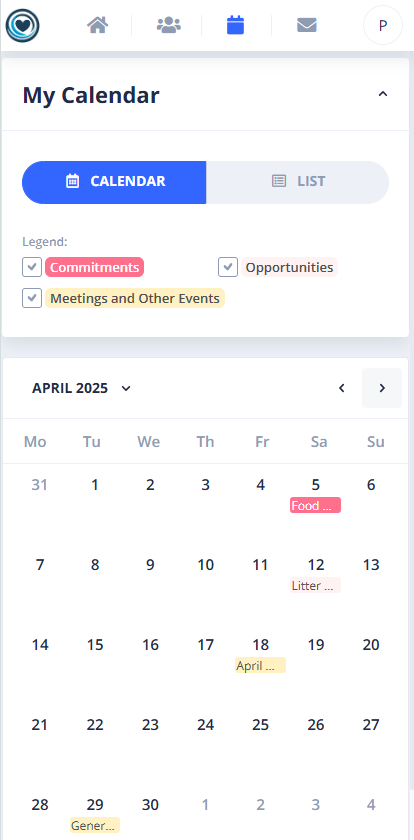
VolunTie offers an all-in-one dashboard where members can access information, chats, conversations, tasks, and schedules. Everything you need is in one place, eliminating the need to switch between multiple apps.
Real-Time Notifications and Email Reminders
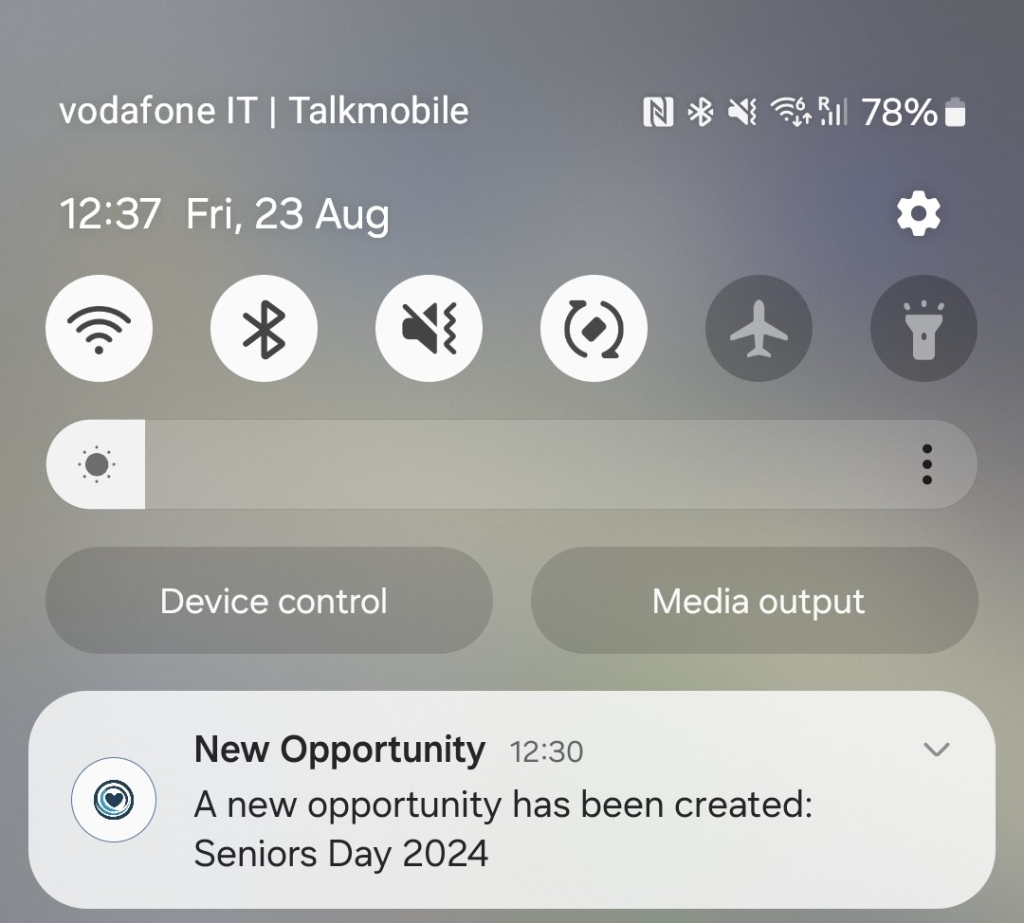
Members will receive real-time notifications and reminders, whether they have opted for email updates or installed the Android or iOS app.
Excel Integration
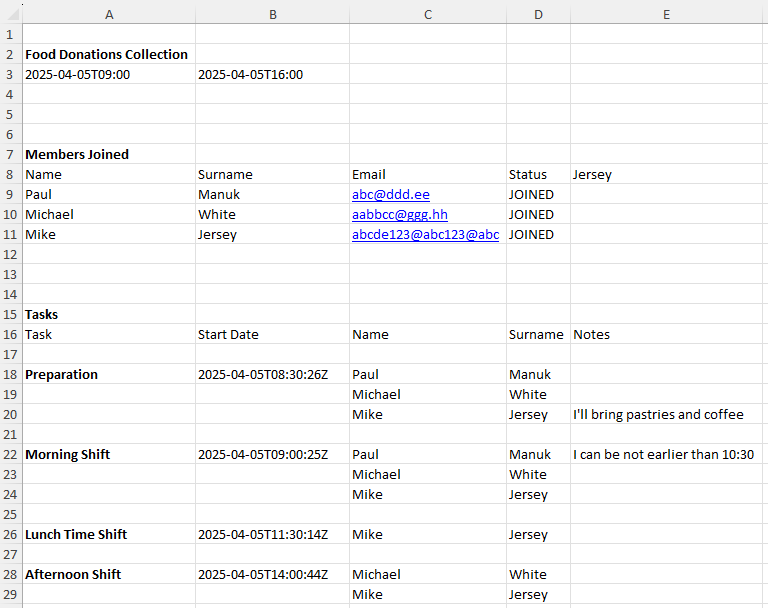
Exporting the full data into Excel is just one simple click away.
Why VolunTie’s Volunteer Signup Features Shine
For small volunteering organizations, VolunTie is a breath of fresh air. No more juggling multiple apps or chasing down volunteers for updates. From creating Opportunities to onboarding helpers and keeping the conversation flowing, it’s all in one place. Administrators save time, volunteers stay engaged, and everyone benefits from a tool that’s as simple as it is powerful. Ready to modernize your group? Download VolunTie on Android or iPhone, or access it from any browser, and see the difference for yourself!